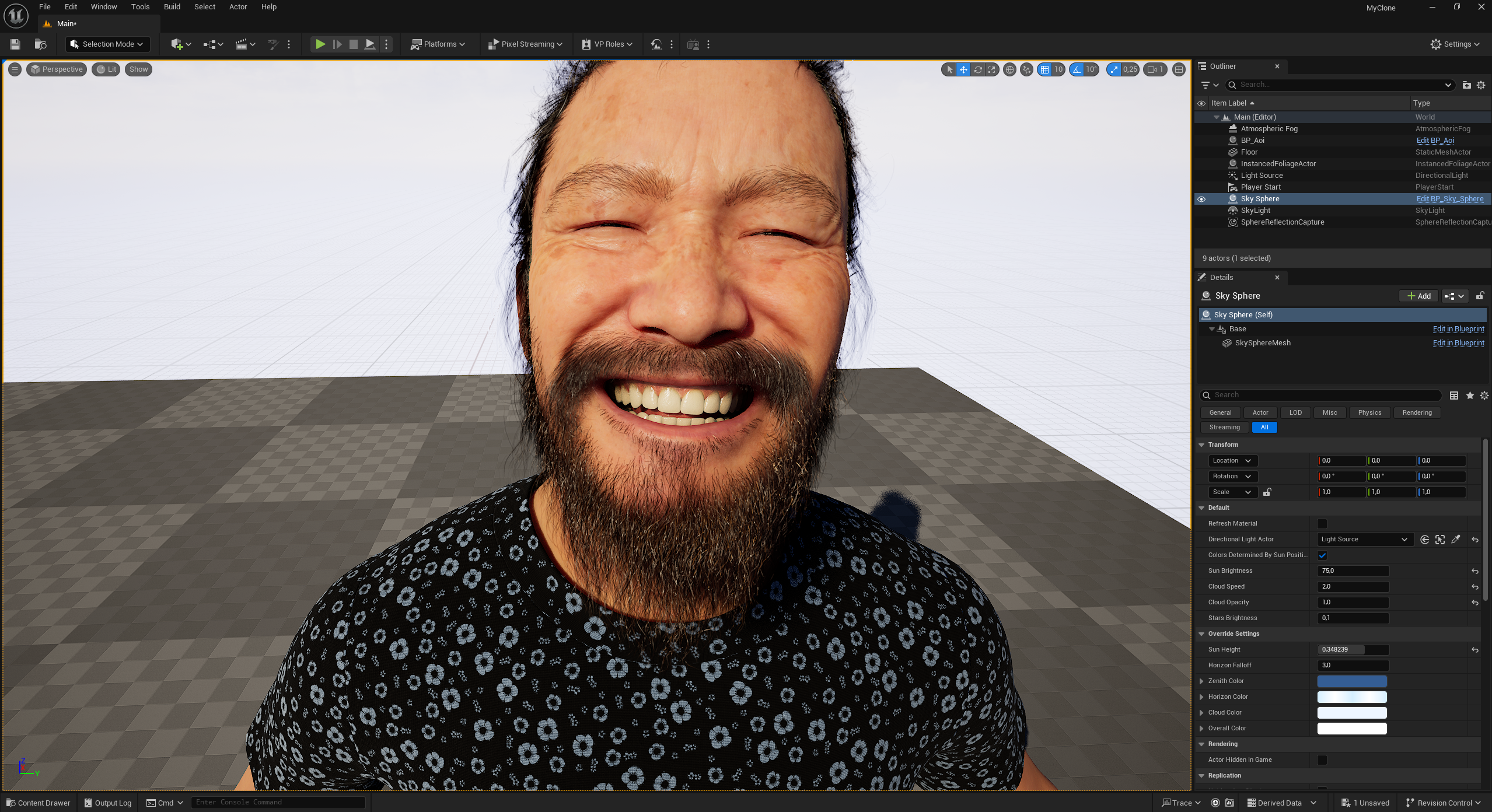
The transmission of facial expressions in real time to digital characters is an important component of modern animation and visualization processes. With Epic Games’ Live Link Face App and Unreal Engine 5, the facial movements of a real person can be precisely transferred to a digital Metahuman character. A prerequisite for this is an iPhone with an integrated TrueDepth camera that is connected via a local network to the computer running Unreal Engine. This tutorial shows how to set up the Live Link Face App and connect it to the engine, how to correctly prepare the Metahuman, and how to finally transmit the facial data live. The goal is to establish a working real-time connection in which the Metahuman moves synchronously with the facial expressions of the real person.
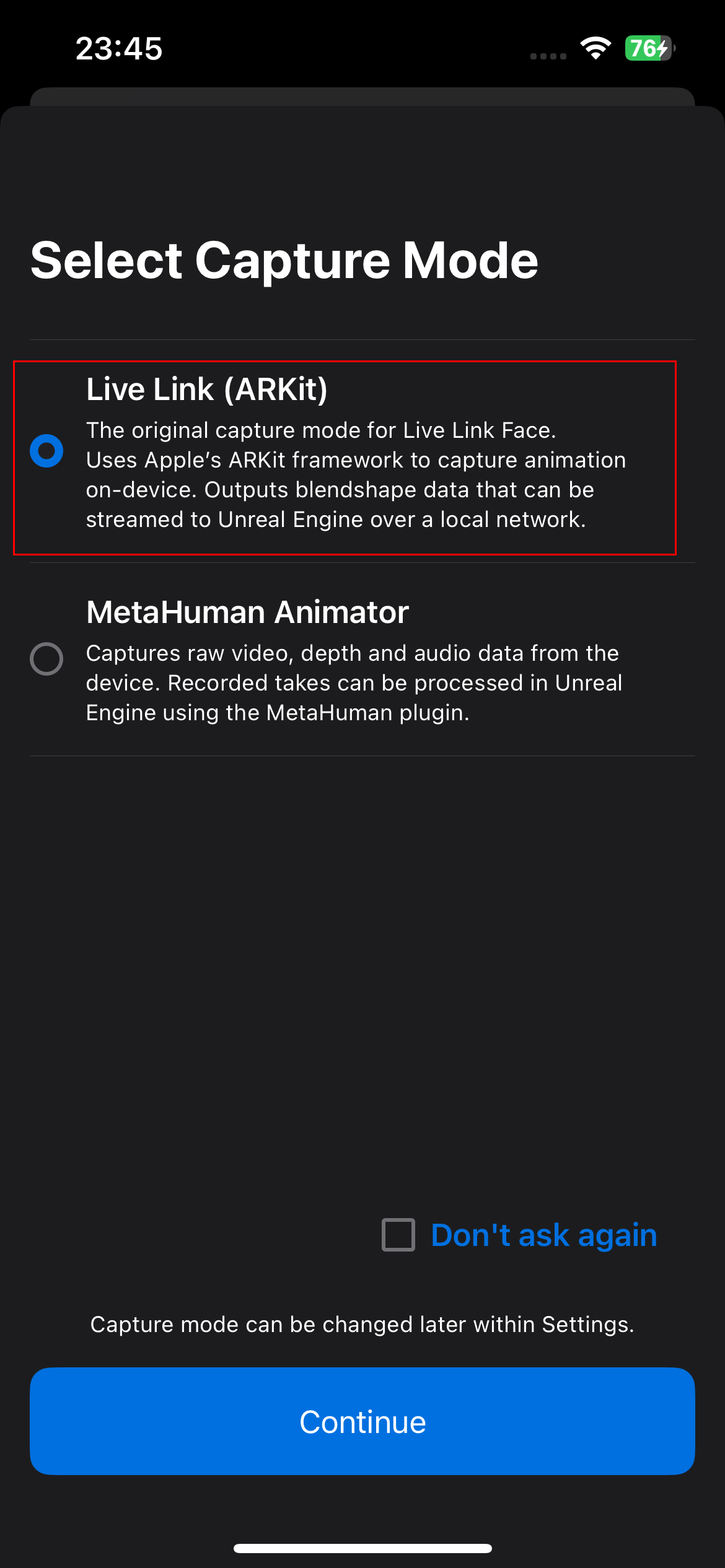
This screen appears when launching the Live Link Face App and is used to select the desired recording mode. Live Link (ARKit): Uses Apple’s ARKit framework to capture facial animations directly on the device. The blendshape data is transmitted over the local network in real time to Unreal Engine. This is the standard mode for live facial animation with Metahumans.
Apple’s ARKit framework is a development environment for iOS that enables augmented reality. It uses the camera, motion sensors, and depth detection to capture the real environment and place digital content precisely within it – for example for face recognition and tracking.
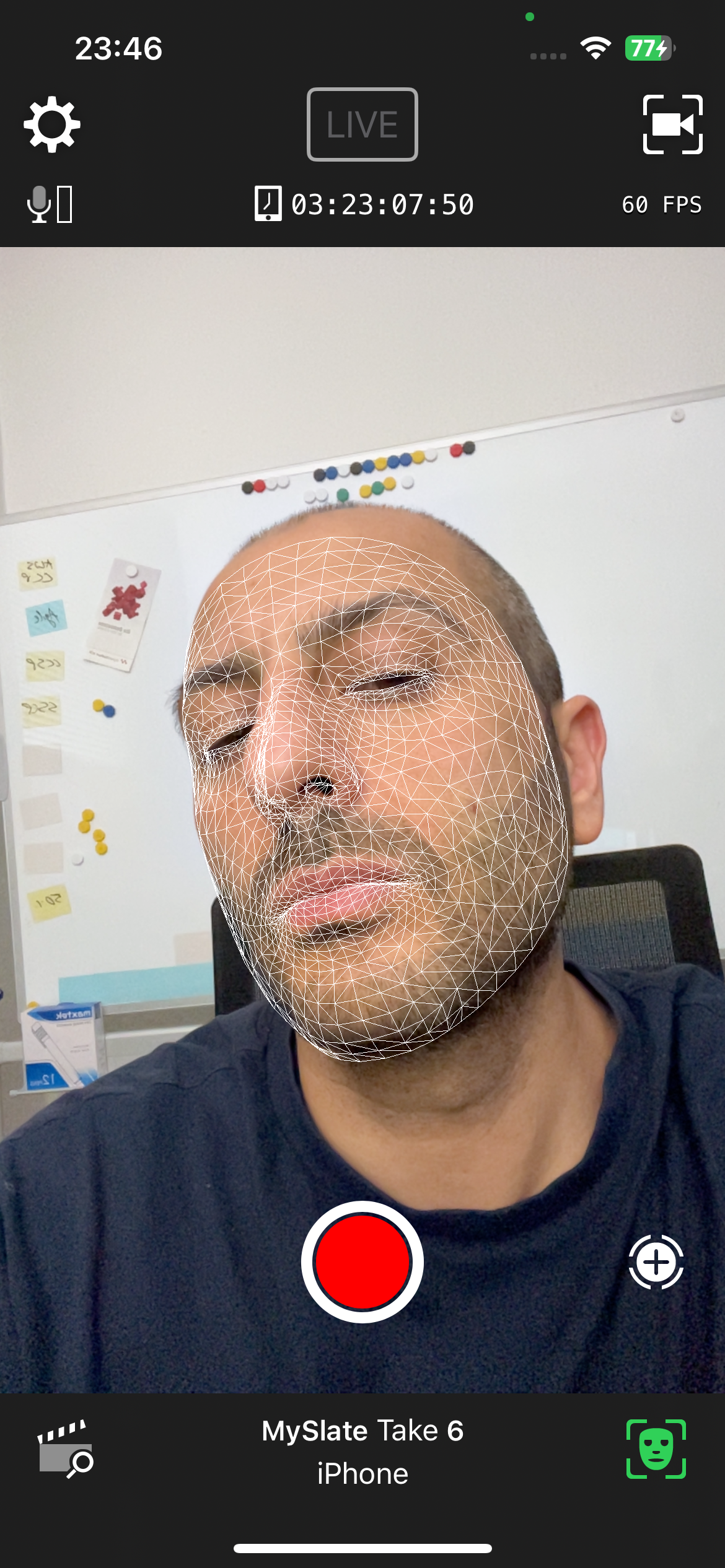
After selecting „Live Link (ARKit)”, a wireframe-like mesh is overlaid on the face, representing the detected facial movements in real time. The app uses the iPhone’s front camera to track facial expressions, eye movements, and head position.
Here you can configure the streaming settings.
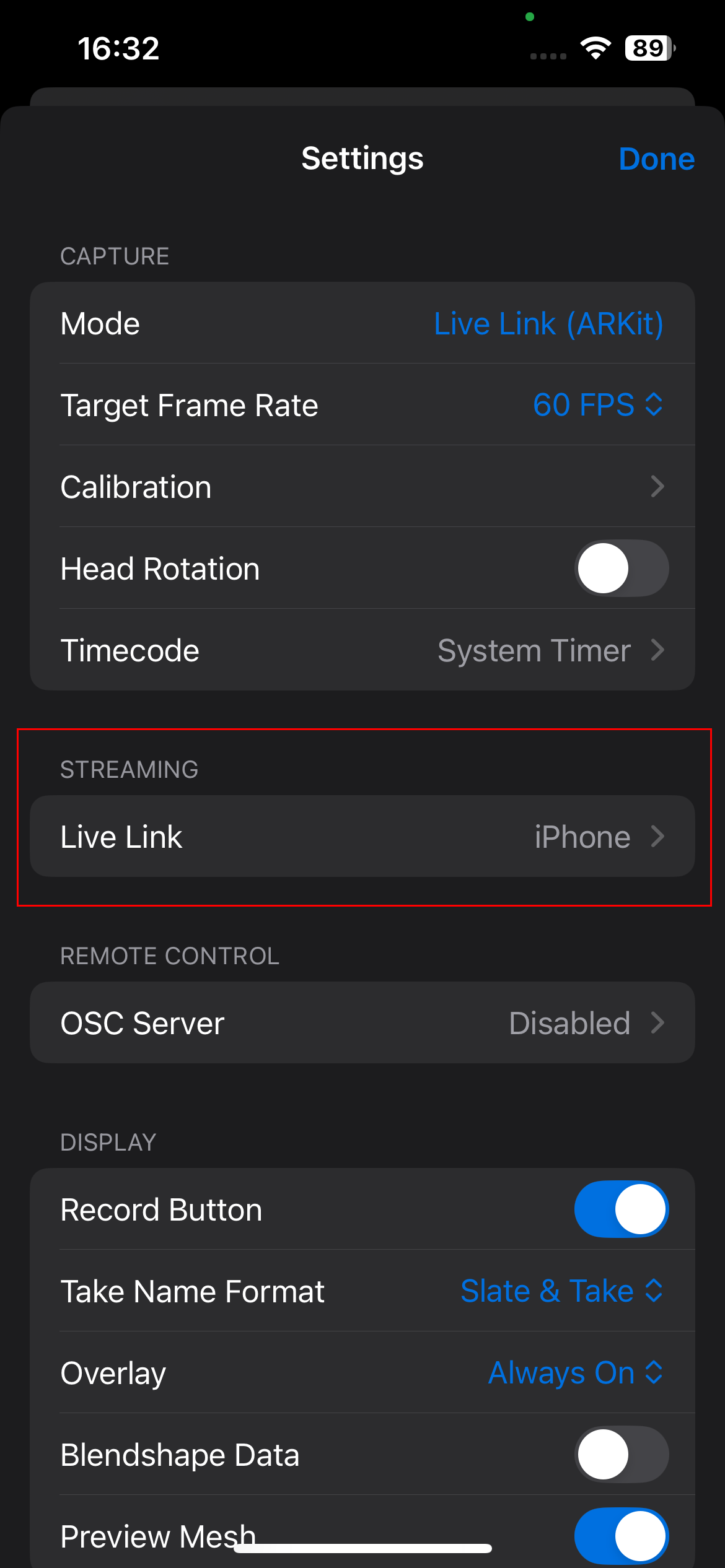

For the connection to work, the computer’s local IPv4 address must first be determined.

This IP address is then entered into the Live Link Face App. The stream is sent to this address over the local network in real time.

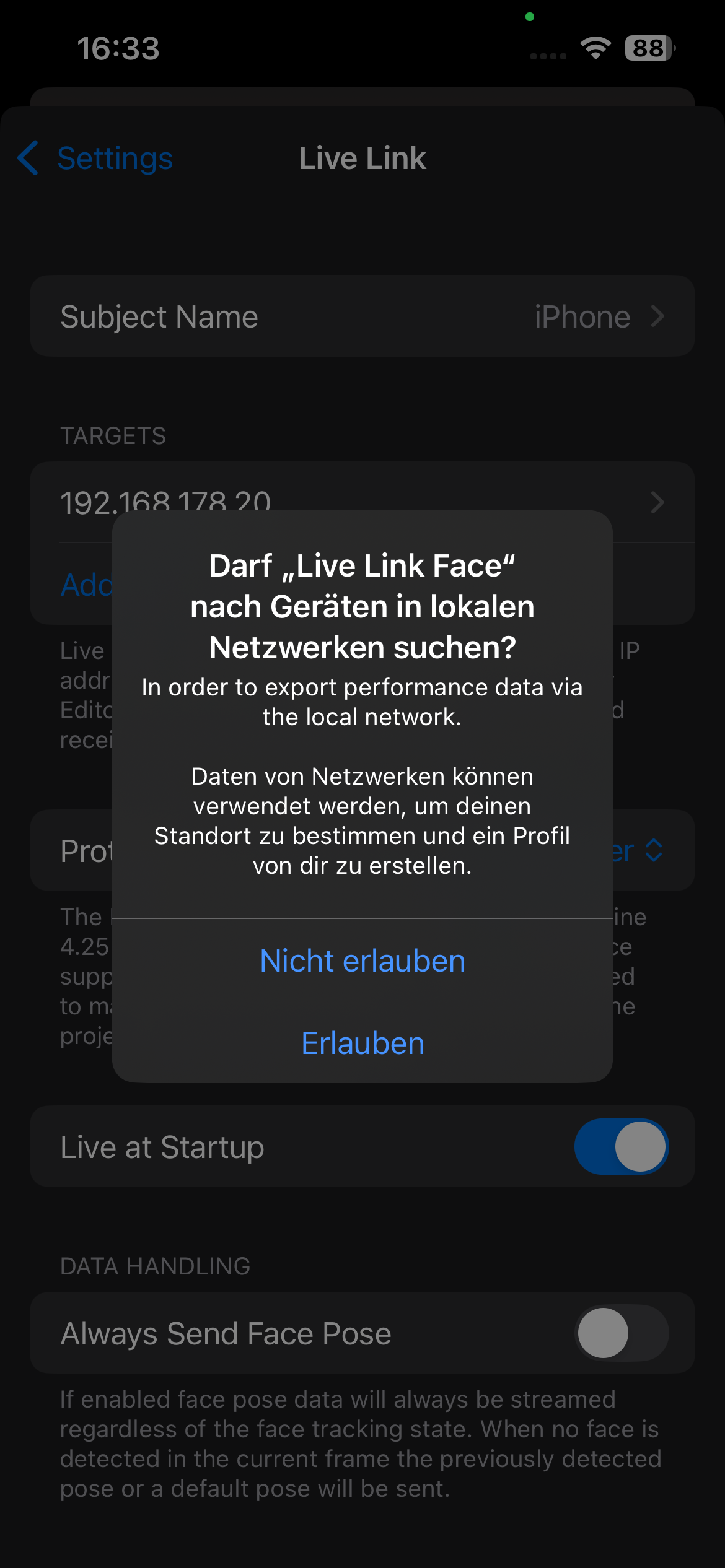
The „Head Rotation” option controls whether the head movements (rotation, tilt, nodding) of the face are captured and transmitted to Unreal Engine. If it is deactivated, only the facial expressions are transmitted, while the head of the digital character remains in its position. This can be useful, for example, when only the facial expressions are needed but no head movement.
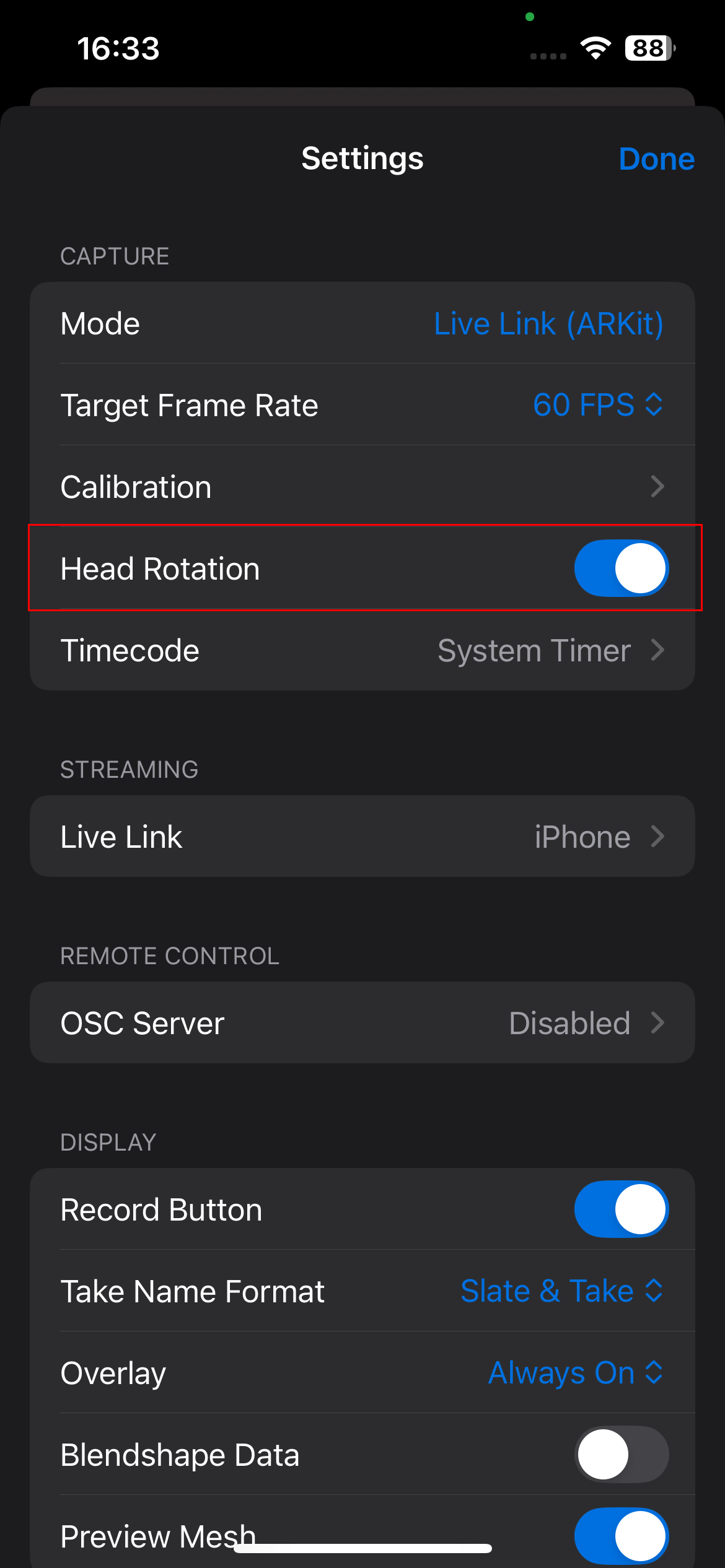
Next, we launch Unreal Engine and create a blank project under the „Film / Video & Live Events” category. This category is particularly suitable for projects with Metahumans and facial animation, as it is geared towards cinematic applications. We choose the „Blank” template to use a minimally prepared environment in which we can configure all necessary components ourselves.
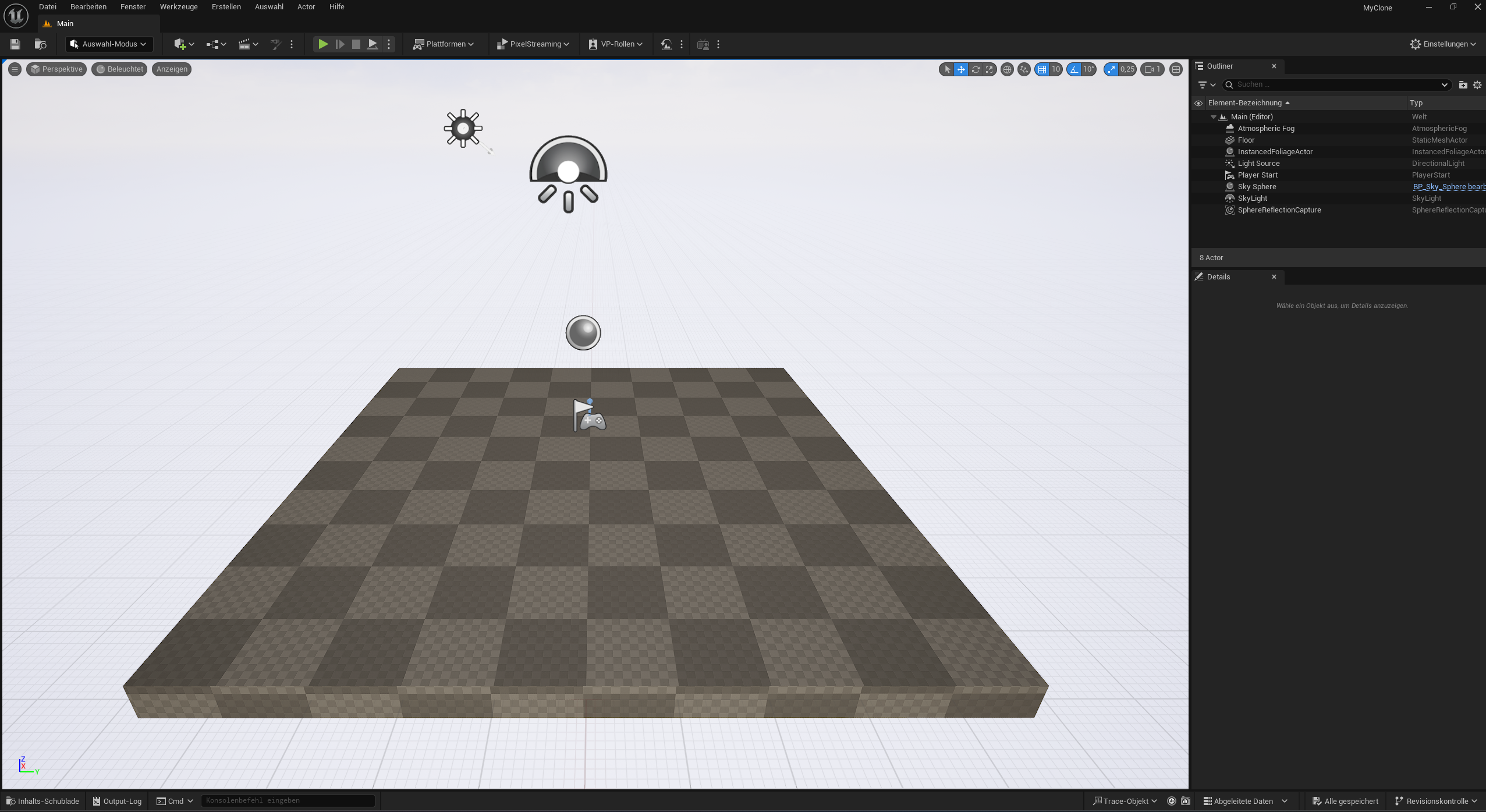
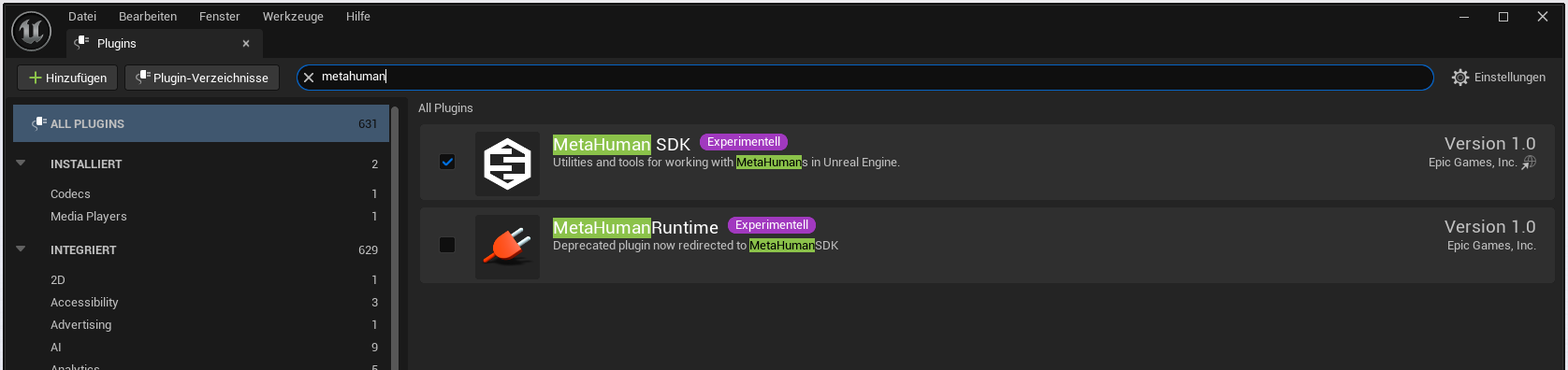
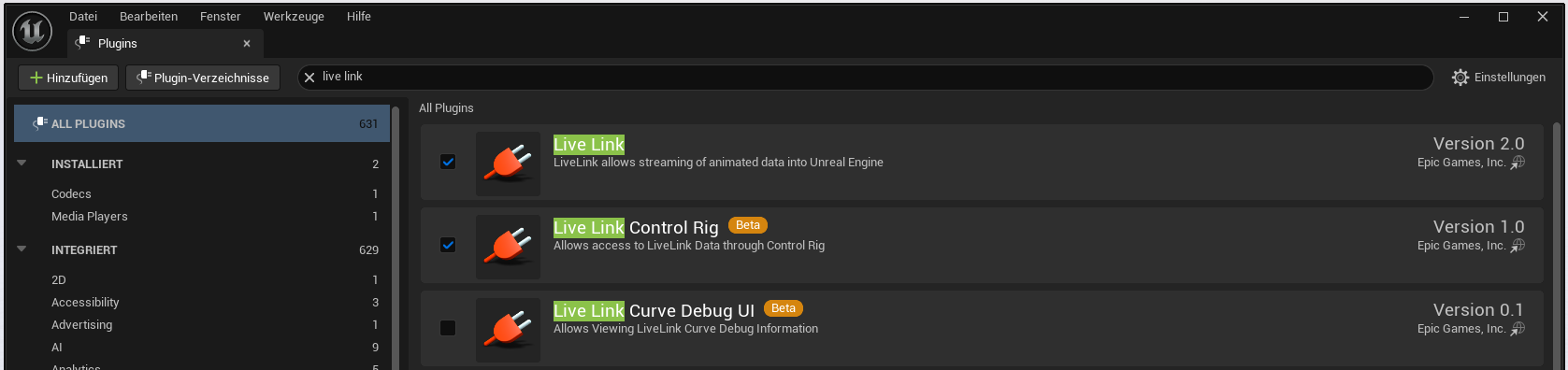
Next, we need to enable the required plugins.

Plugin: MetaHuman SDK
Plugin: Live Link
Plugin: Live Link Control Ring
Plugin: Apple ARKit
Plugin: Apple ARKit Face Support

Quixel Bridge is an integrated library in Unreal Engine that allows you to access a large collection of photorealistic 3D assets, textures, and materials from the Megascans library. The content can be imported directly into the Unreal project with a click of the mouse and is especially useful for realistic environments, characters, or details. Quixel Bridge is free for all Unreal Engine users and simplifies the creation of high-quality scenes without custom modeling.
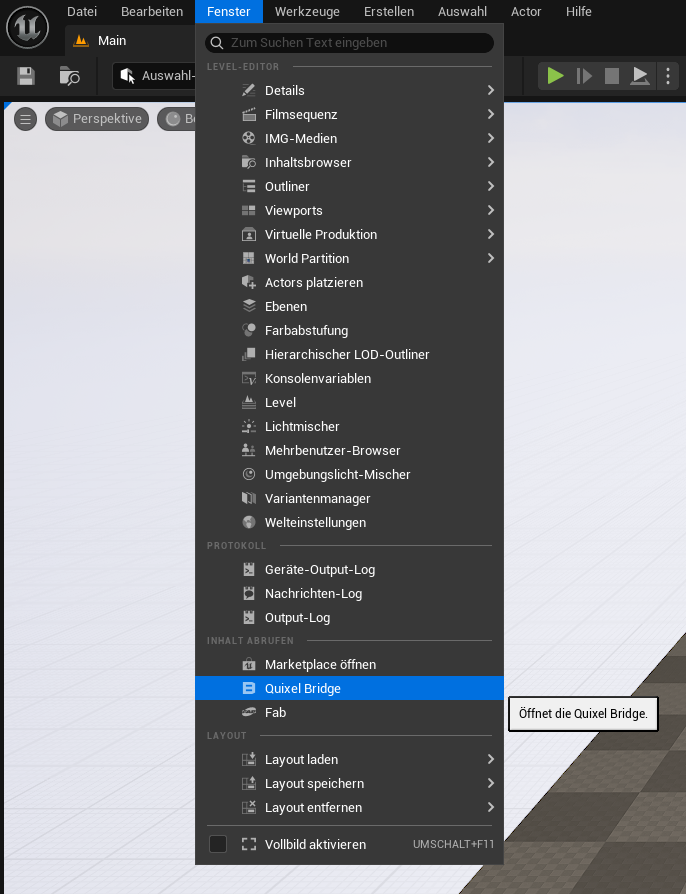
Quixel Bridge offers a wide selection of pre-modeled and textured characters that can be used directly in Unreal Engine.
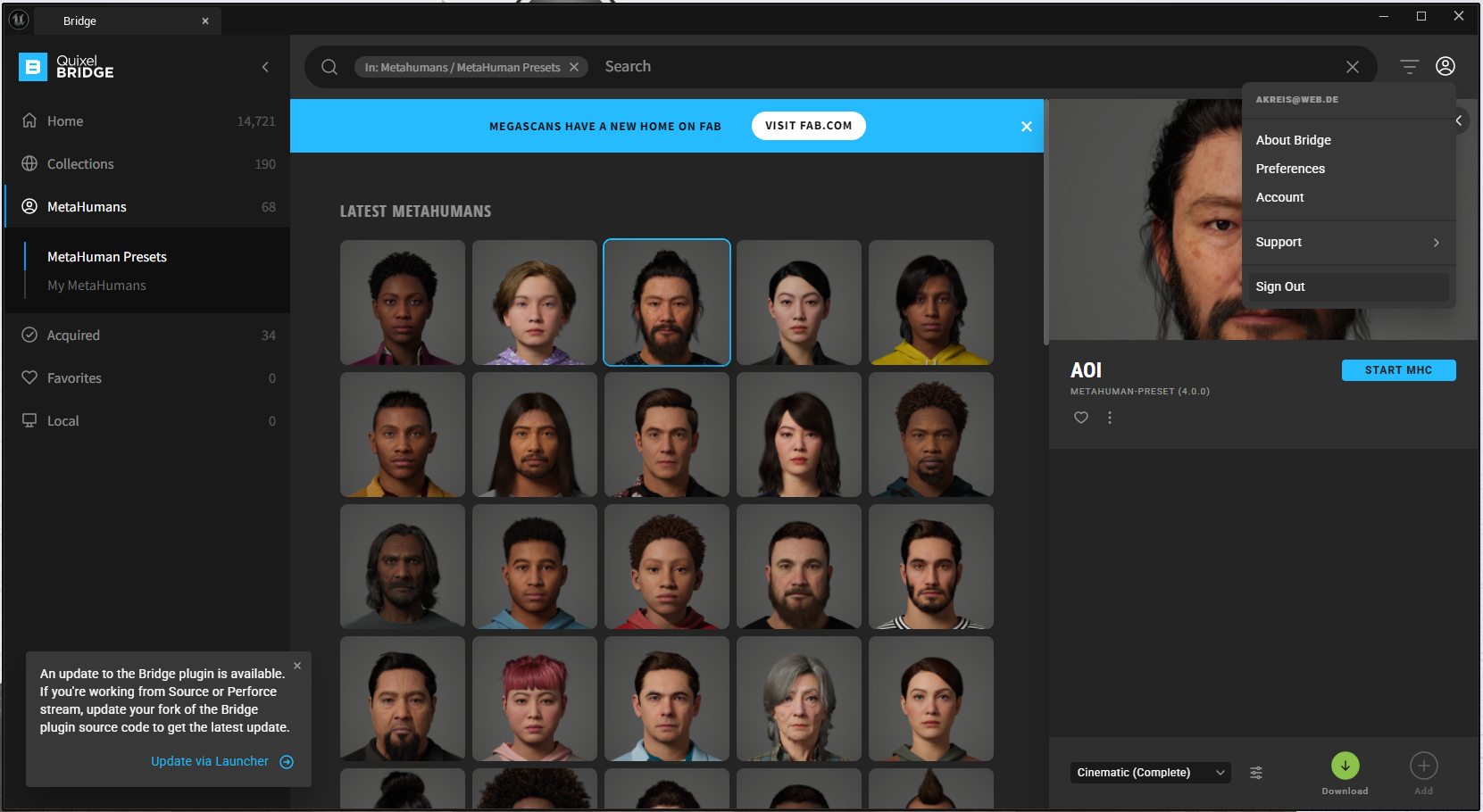
Next, we can drag & drop the selected character into the scene.
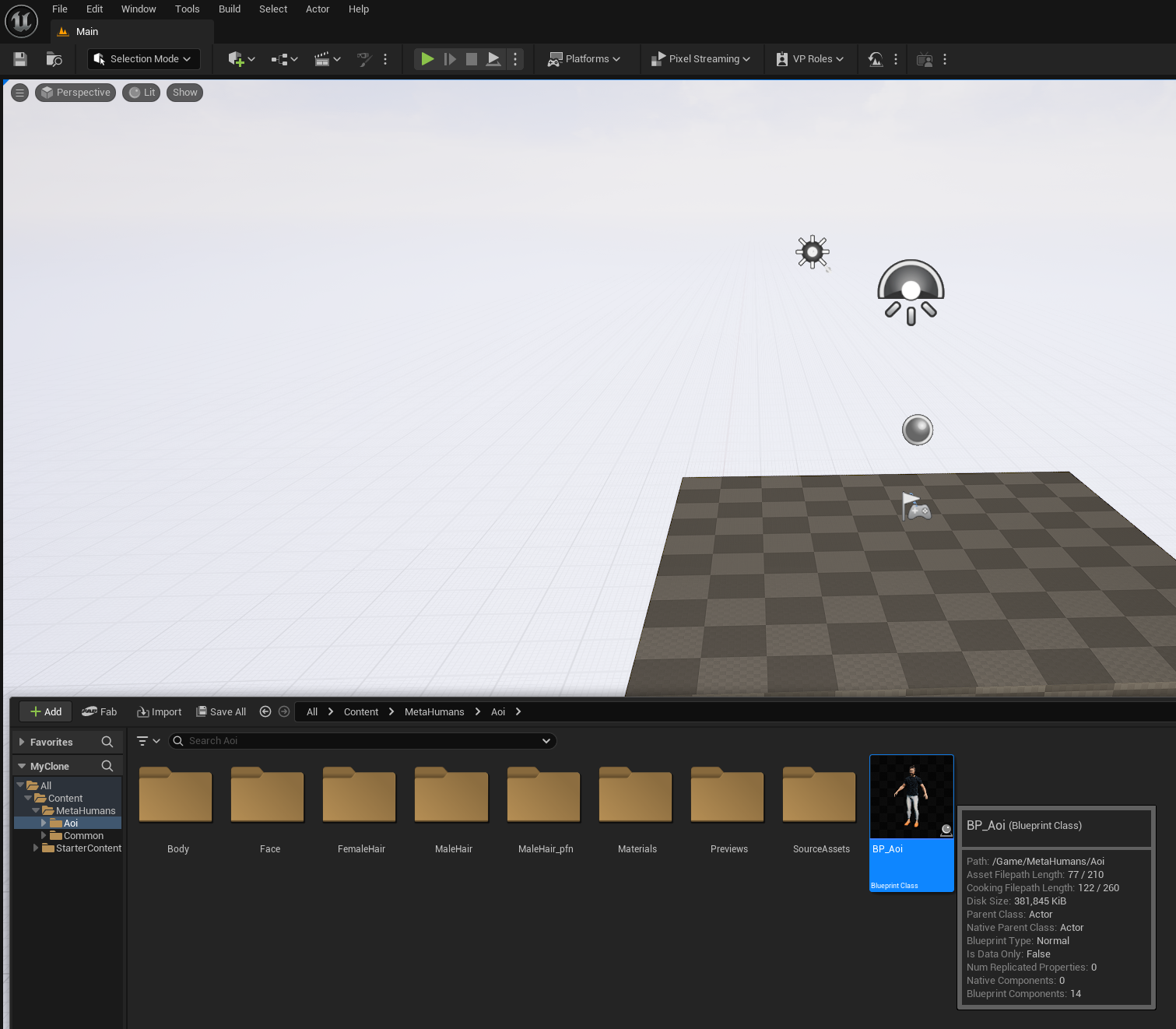
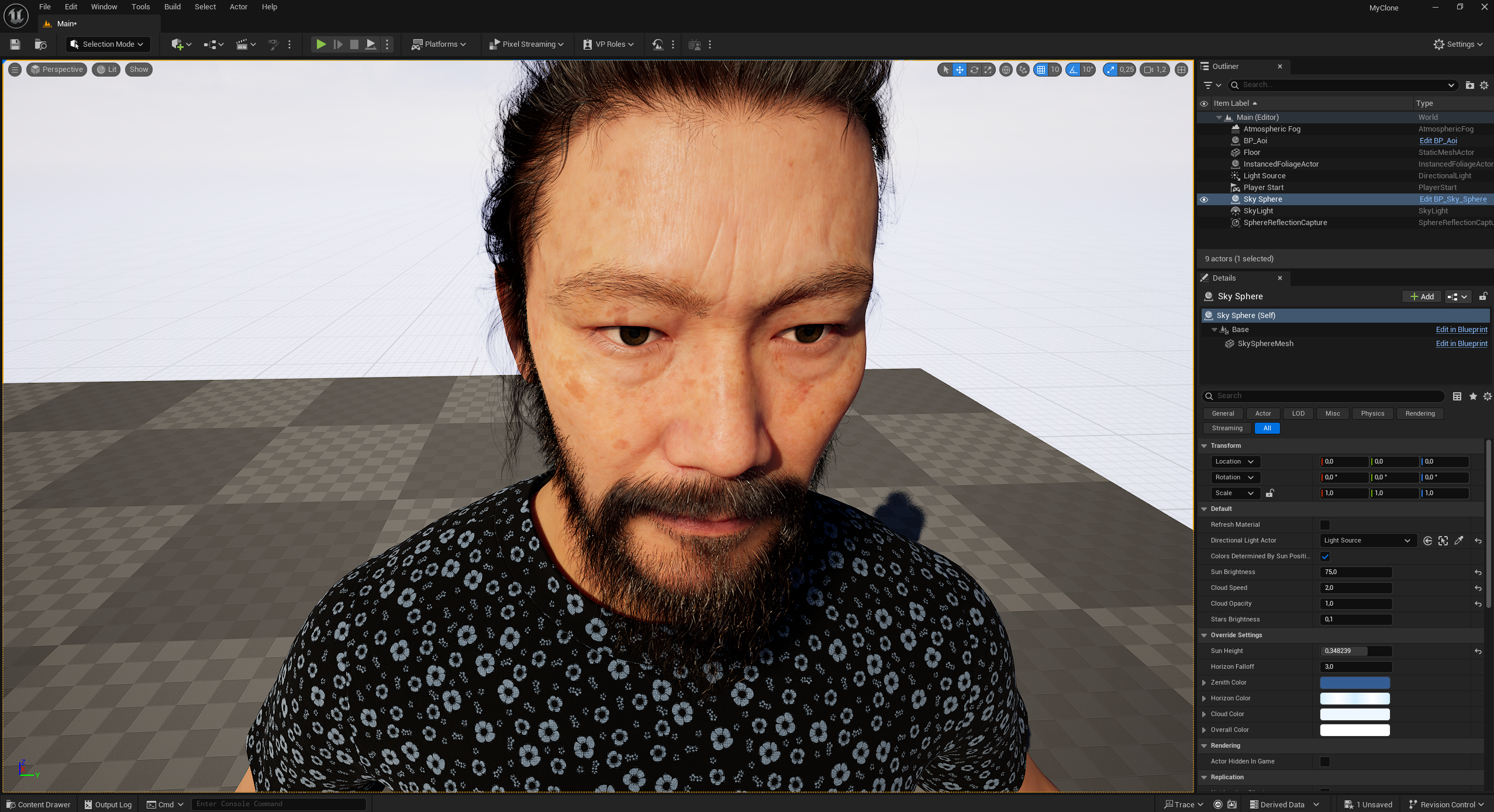
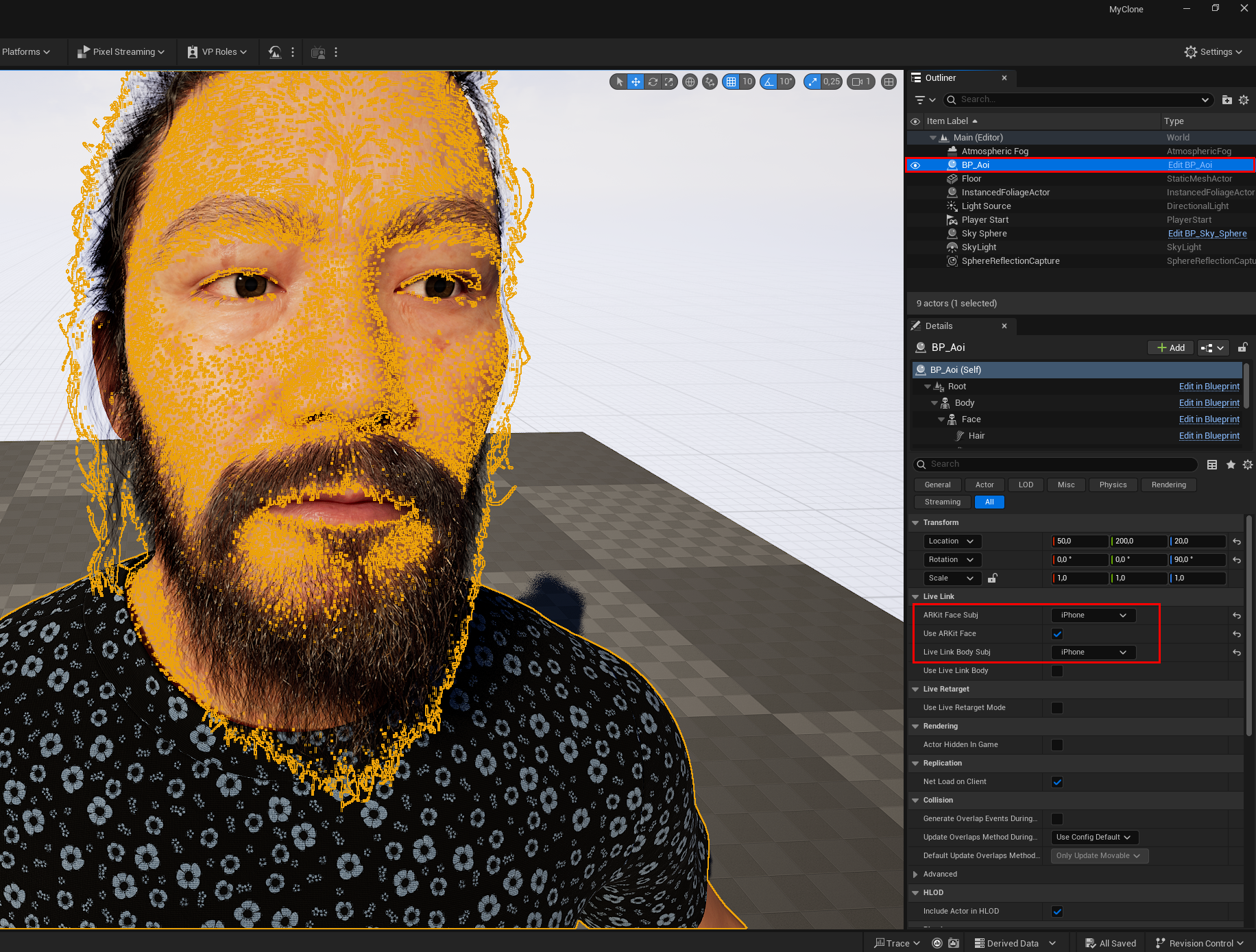
In the Details panel of a Metahuman character (here BP_Aoi), the connection to the Live Link Face App is established. The fields are used to link the data stream of the facial and, if applicable, body animation to the Metahuman:
ARKit Face Subj: This is where the source for the facial data is specified. In this case, „iPhone” is selected – meaning that the blendshape data comes from the Live Link Face App on the iPhone.
Use ARKit Face: Enables or disables the use of ARKit data. If this field is activated, the Metahuman uses the live data for facial expressions.
Live Link Body Subj: Specifies the source for body movement data. Here again, „iPhone” is indicated, although in this example no body data is apparently transmitted – this field usually remains empty when only facial data is used.