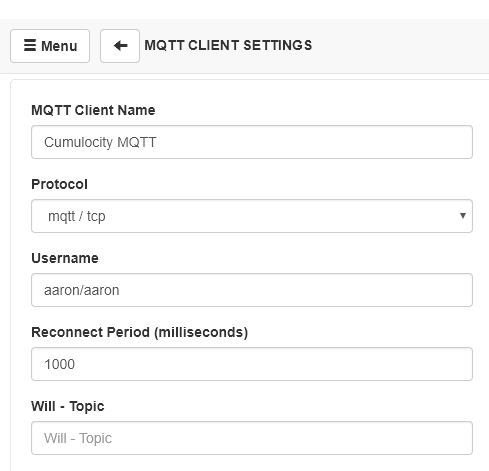
Objective
- Setting up the Node-RED editor within IBM Cloud
- Sending messages via MQTT to a Node-RED MQTT node
You can request access to IBM Cloud at the following URL: IBM Cloud
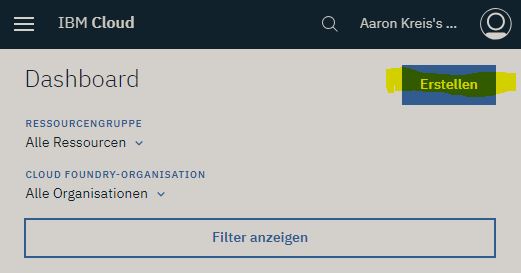
Afterwards you can create a new ‘Resource’ here.
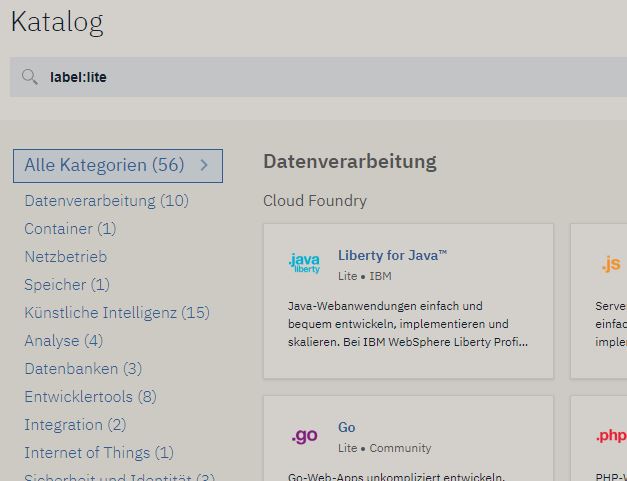
Within the catalog, various cloud resources (applications) are made available to us.
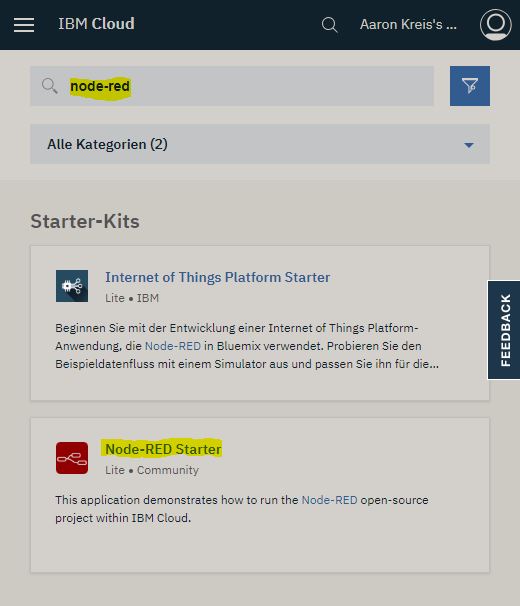
We select Node-RED. This application provides us with the Node-RED editor within IBM Cloud.
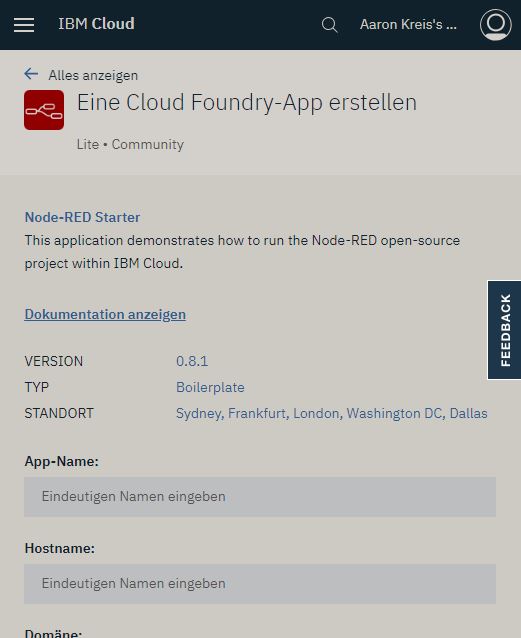
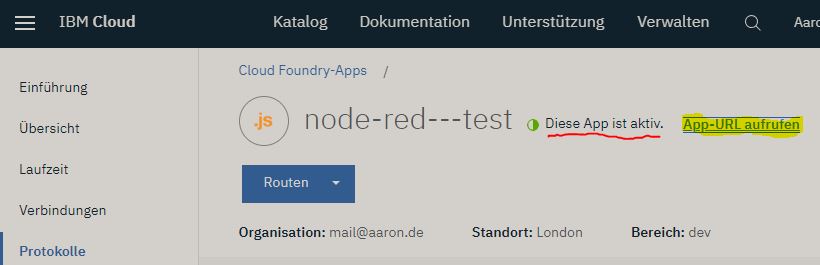
After entering the initial data, we have to wait a brief moment until the application is installed with the desired settings in the cloud and made available to us.
Next, the Node-RED instance or the Node-RED editor must be configured.
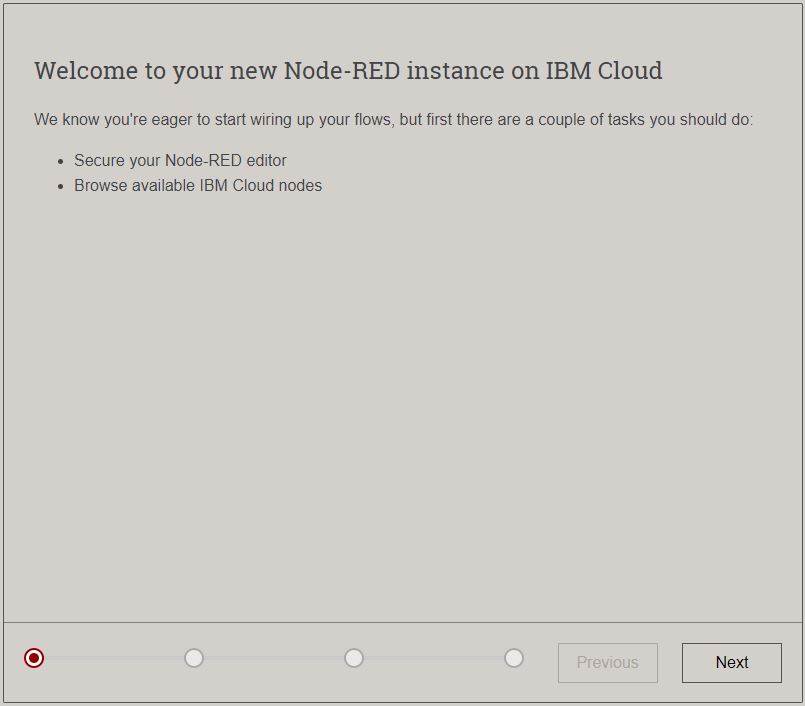
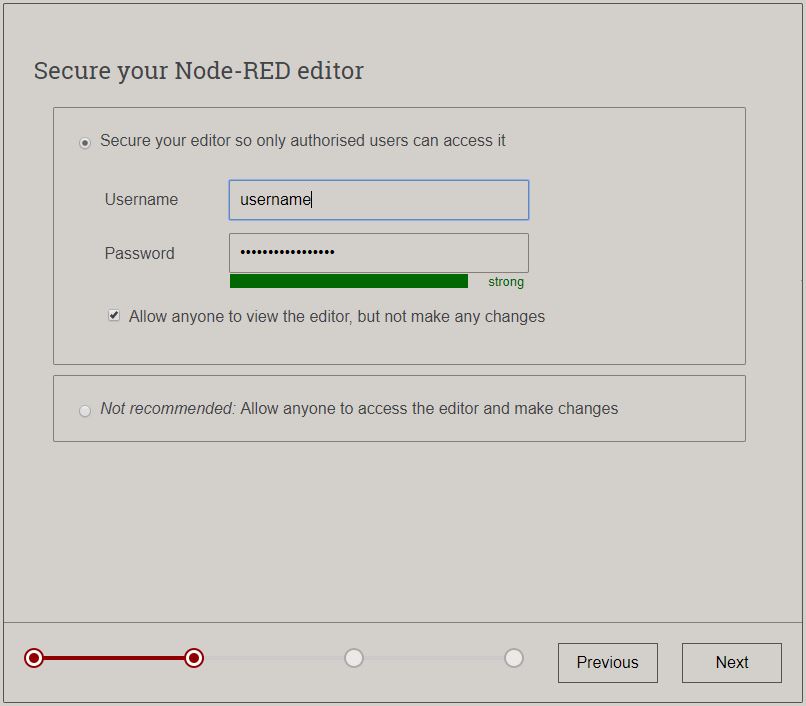
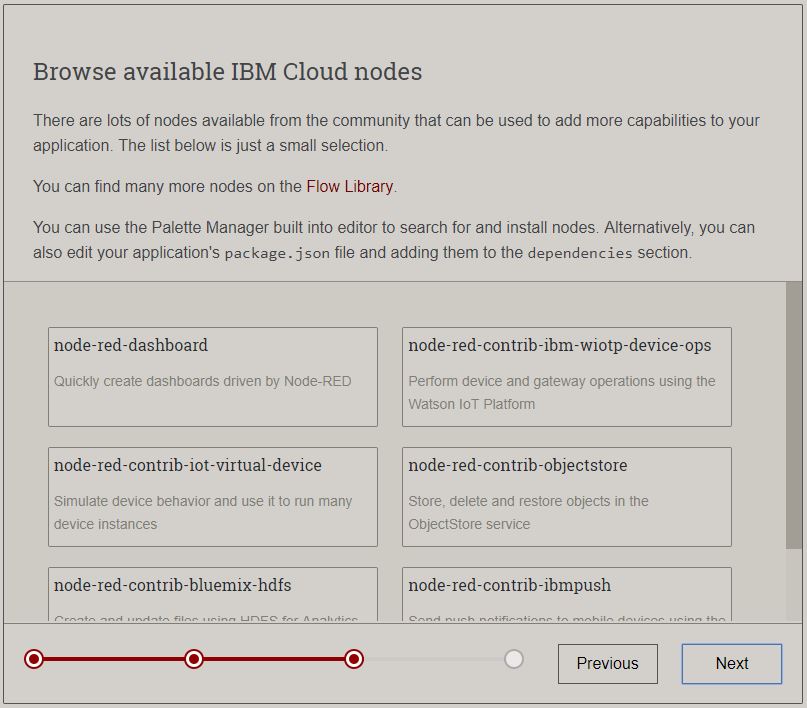
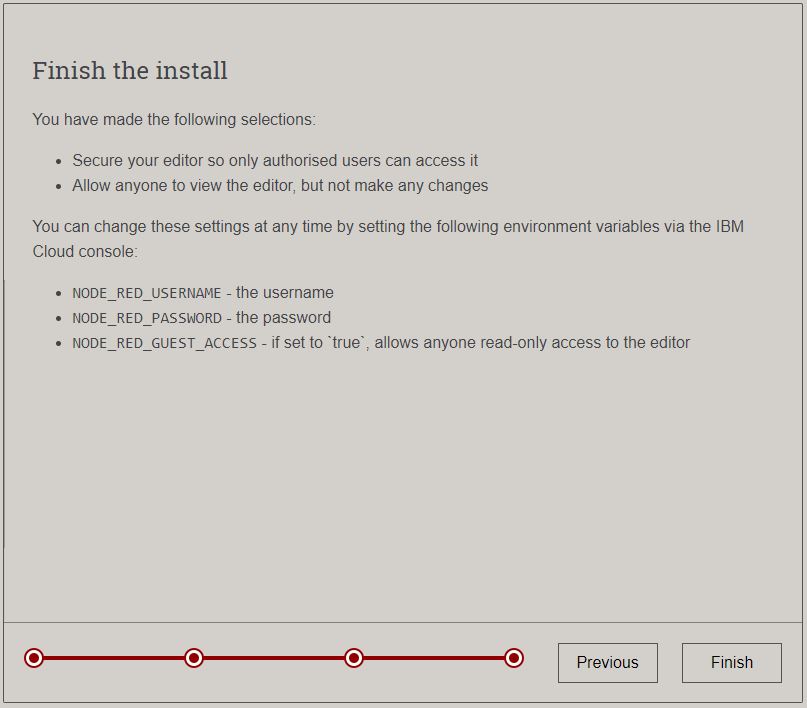
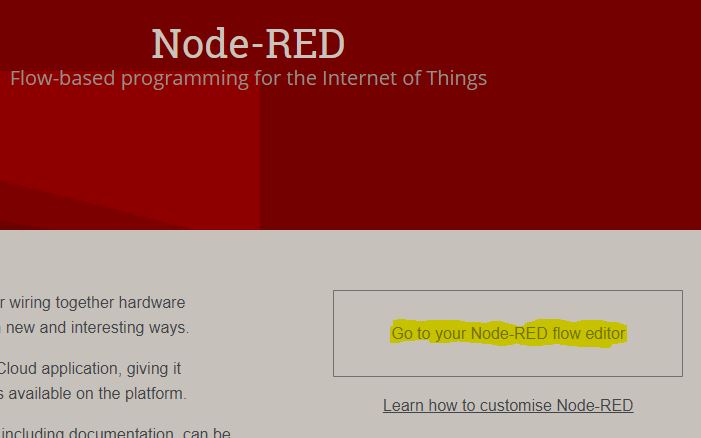
The editor can be launched by selecting “Go to your Node-RED flow editor”.
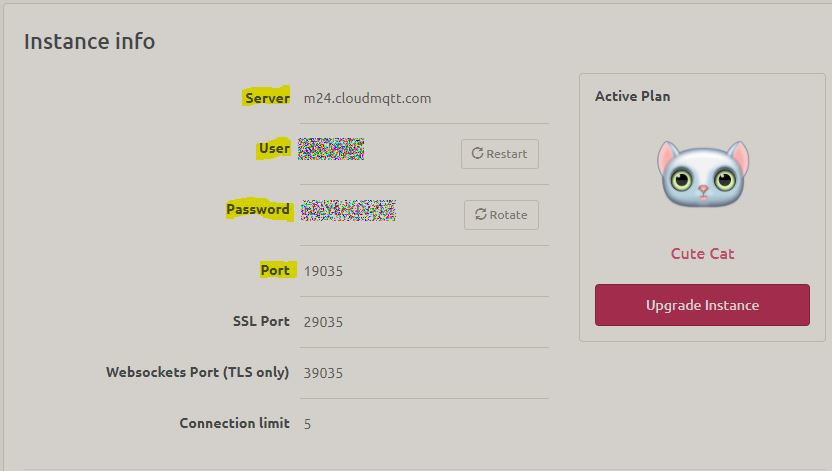
For sending messages via MQTT, in this example I use CloudMQTT.
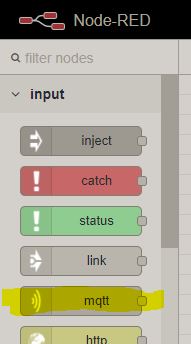
After starting the Node-RED editor, we select the input MQTT node.
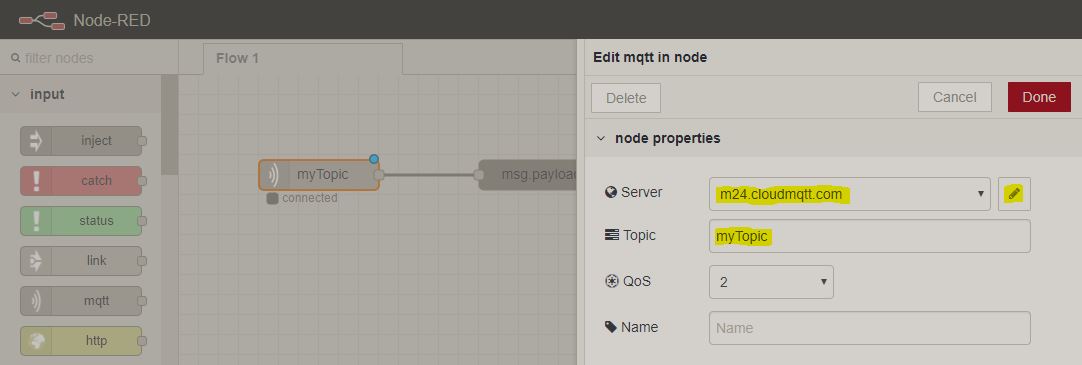
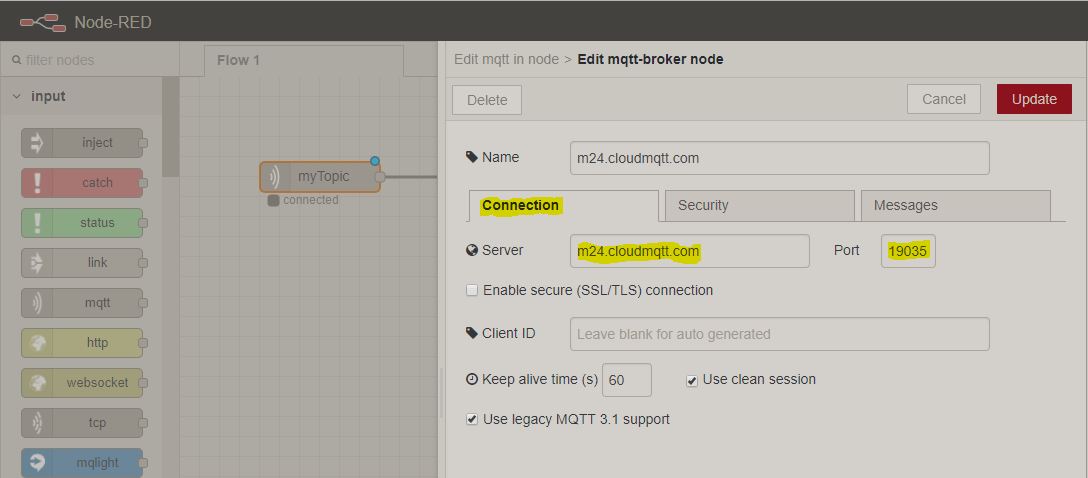
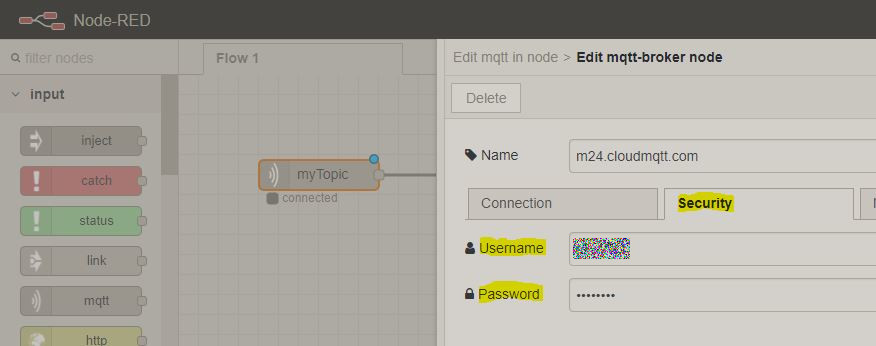
Then the MQTT server (CloudMQTT) must be configured for the input MQTT node as follows.
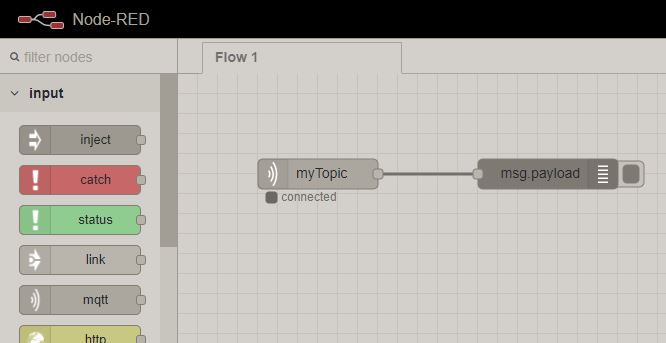
After connecting the ‘MQTT’ node to a ‘debug’ node, the MQTT messages are displayed in the ‘debug’ window as follows.
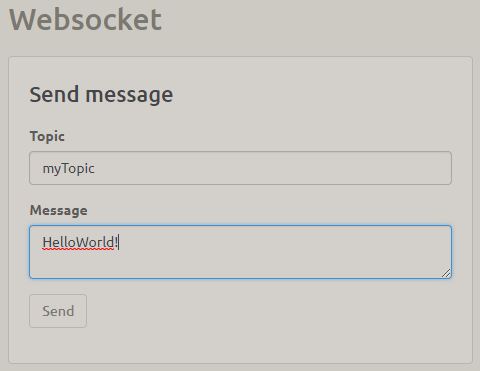
Sending an MQTT message via CloudMQTT.
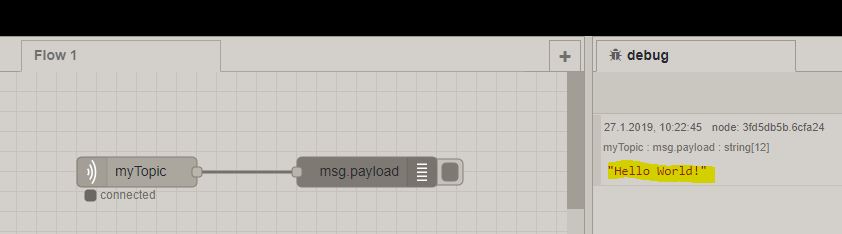
Display of incoming MQTT messages within the debugger.
The whole thing becomes a bit more exciting when we use the nodes provided by IBM Watson, such as ’text to speech’. To use ’text to speech’, we need to connect our Node-RED instance with an
Identity and Access Management (IAM) Service. Authentication then takes place via a token.
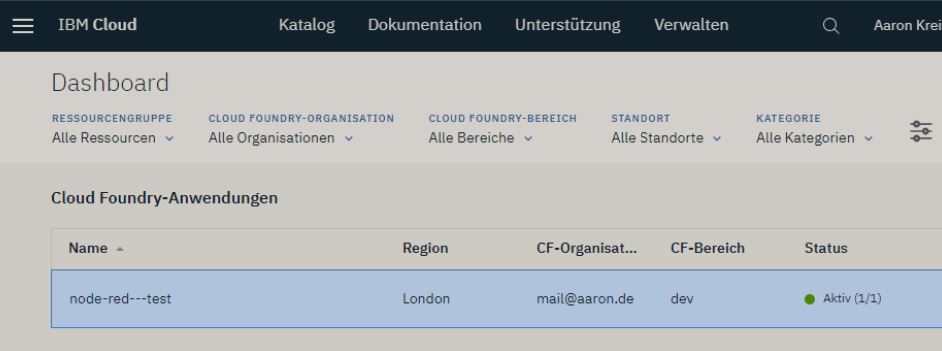
Selecting the Node-RED instance:
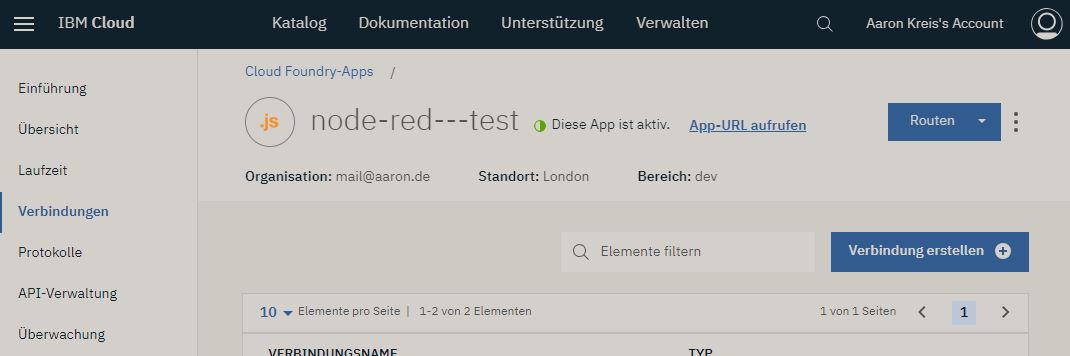
Create a new connection for Node-RED:
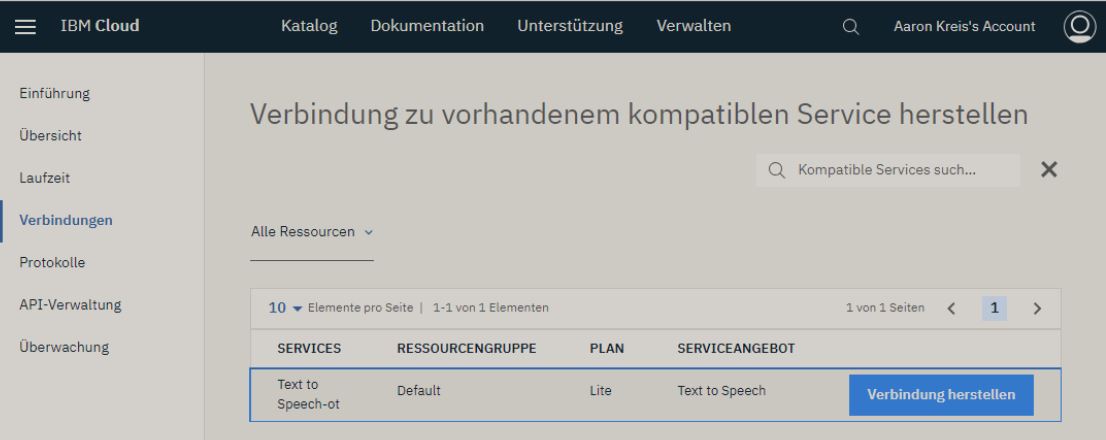
Establish connection with Text to Speech:
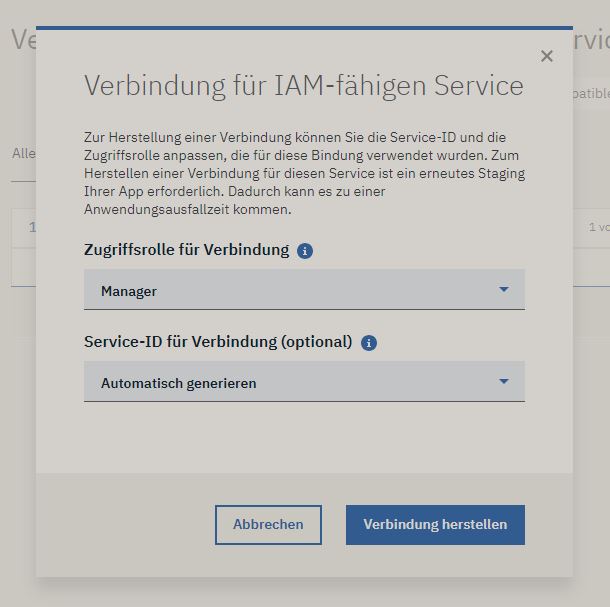
Use of IAM:
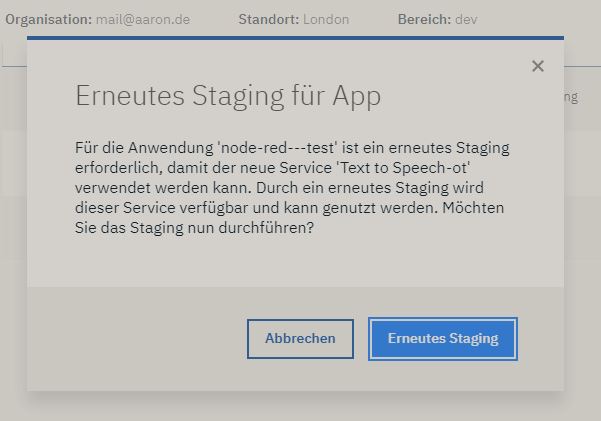
Redeploy Node-RED instance:
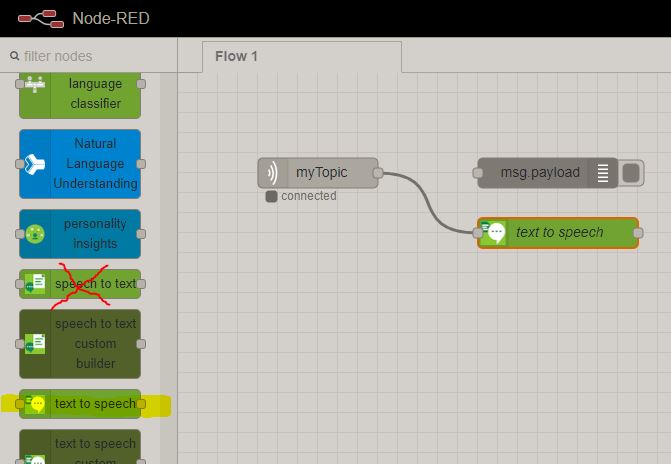
Selecting the IBM Watson ’text to speech’ node:
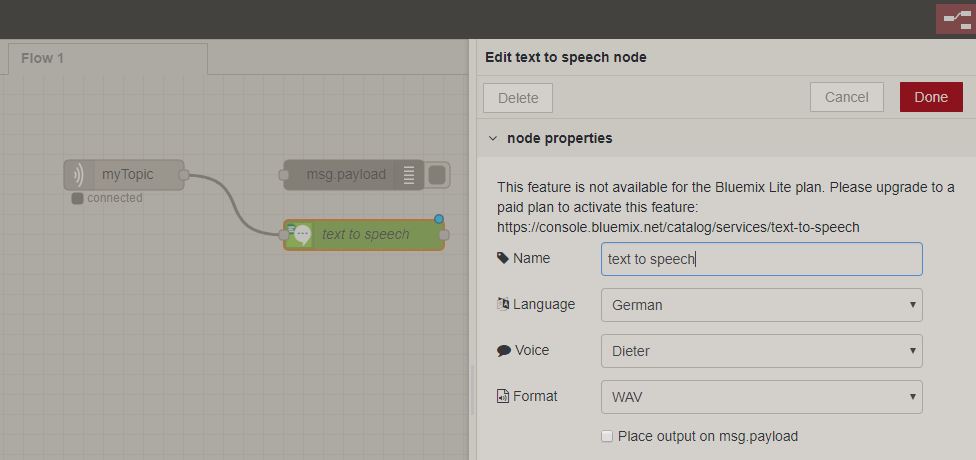
Configuration of the ’text to speech’ node:
To conveniently output the incoming MQTT message, a new Node-RED node must first be installed:
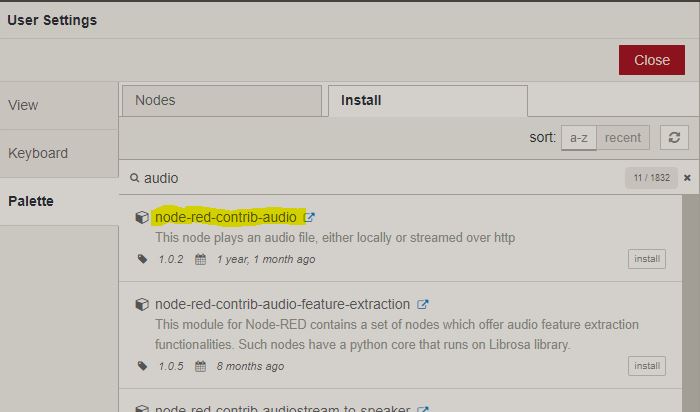
Afterwards, the new ‘audio’ node can be connected to the ’text to speech’ node. Since the plugin cannot be installed for me, I would have to take a very large detour and install the application manually via ‘Node-RED IBM Cloud Starter Application’ install.