MQTT Summary [Source: Wikipedia]
MQTT (Message Queuing Telemetry Transport) is an open messaging protocol for machine-to-machine communication (M2M) that enables the transmission of telemetry data in the form of messages between devices, e.g. sensors.
The Internet Assigned Numbers Authority (IANA) reserves ports 1883 and 8883 for MQTT. MQTT messages can be encrypted using the TLS protocol.
The MQTT specification distinguishes between TCP/IP-based and non-TCP/IP networks.
MQTT is a client-server protocol. Clients send messages with a topic to the server (“broker”) after establishing a connection; the topic hierarchically classifies the message, for example Kitchen/Fridge/Temperature or Car/Wheel/3/AirPressure. Clients can subscribe to these topics, and the server forwards received messages to the respective subscribers.
It is interesting that an MQTT server (“broker”) holds the entire data state of its communication partners and can thus be used as a state database. This makes it possible to connect small, low-performance MQTT devices to an MQTT broker, where the devices collect data and/or receive commands, while a complex situational picture arises only on the MQTT broker and can be analyzed there or by a more powerful communication partner.
Messages always consist of a topic and the message payload. Messages are sent with a definable quality of service:
- at most once: the message is sent once and may not arrive if the connection is interrupted
- at least once: the message is sent repeatedly until receipt is acknowledged and may arrive multiple times at the recipient
- exactly once: this ensures that the message arrives exactly once even if the connection is interrupted
Additionally, the server can be instructed with the Retain flag to store the message for that topic.
When establishing the connection, clients can define a “last will” in the form of a message. If the connection to the client is lost, this message is published and sent to the respective subscribers.
MQTT is usually used over TCP and has a 2-byte header. The first byte contains the message type (4 bits), the quality of service (2 bits), and a retain flag. The second byte contains the length of the remaining MQTT packet. This is followed by a variable section that contains the MQTT topic, i.e., the subject. Finally comes the payload, i.e., the data content that is published under the topic.
There are the following message types:
- CONNECT
- CONNACK
- PUBLISH
- PUBACK
- PUBREC
- PUBREL
- PUBCOMP
- SUBSCRIBE
- SUBACK
- UNSUBSCRIBE
- UNSUBACK
- PINGREQ
- PINGRESP
- DISCONNECT
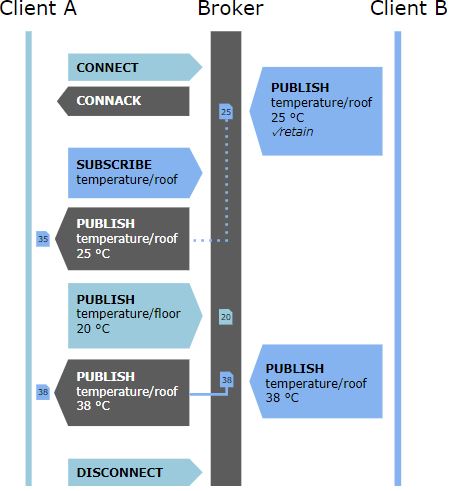
The bolded message types can be found in the following communication:
Topics can include wildcards:
- Single level wildcard (+): house/+/fridge/temperature
- Multi level wildcard at the end (#): kitchen/fridge/#
Installing MQTTBox
MQTTBox is an MQTT client that, among other things, gives us the ability to create new topics and/or subscribe to existing topics.
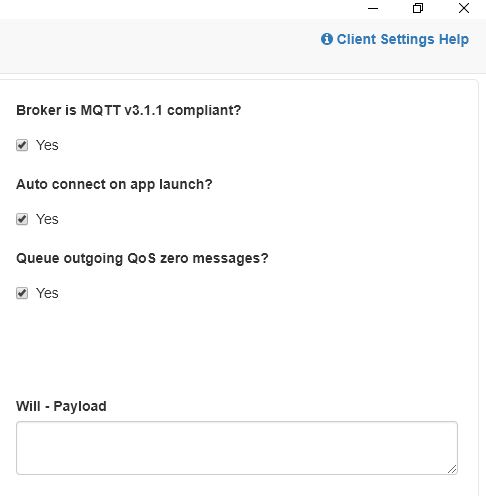
Configuration of MQTTBox for communication with the Cummulocity (C8Y) IoT platform:
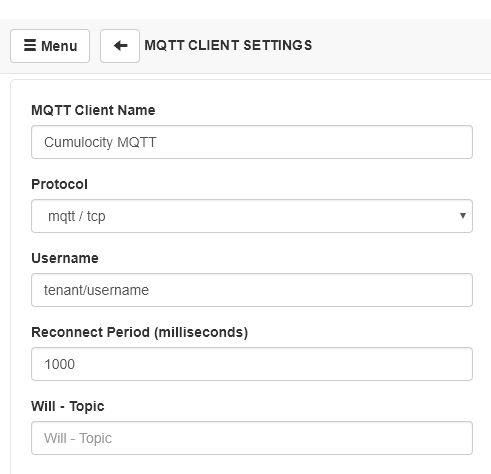
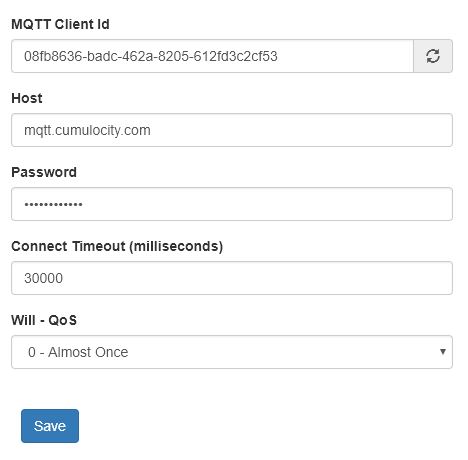
Based on the MQTT client ID, future requests can be assigned to an existing device with the aforementioned ID. I’ll jump ahead a bit and show where this ID is located after creating a device:
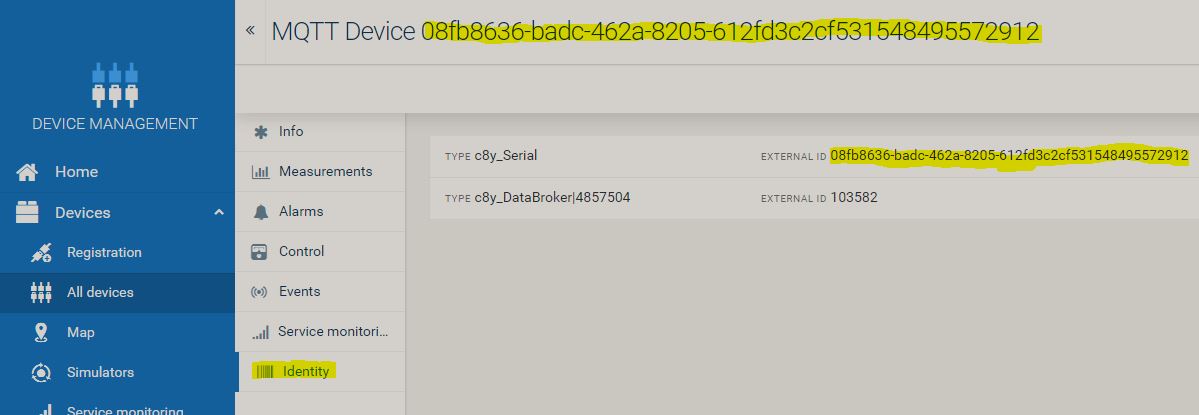
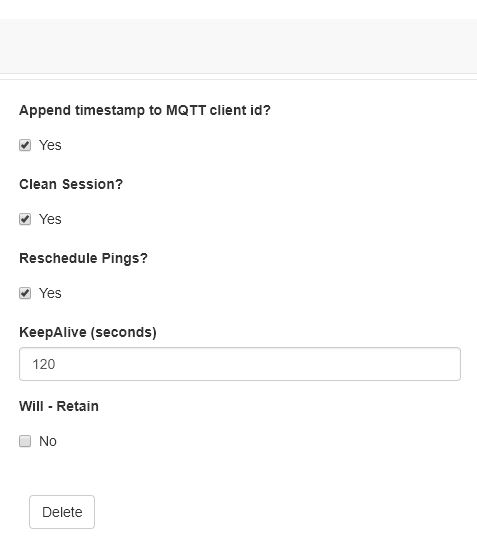
Afterwards, a connection to C8Y can be established.
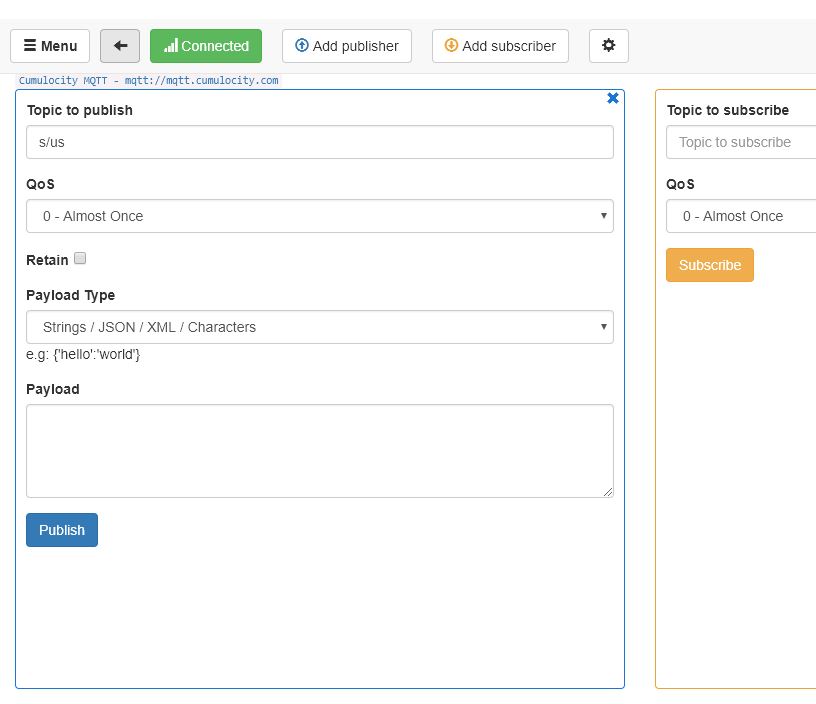
Device creation within the C8Y IoT platform via MQTT
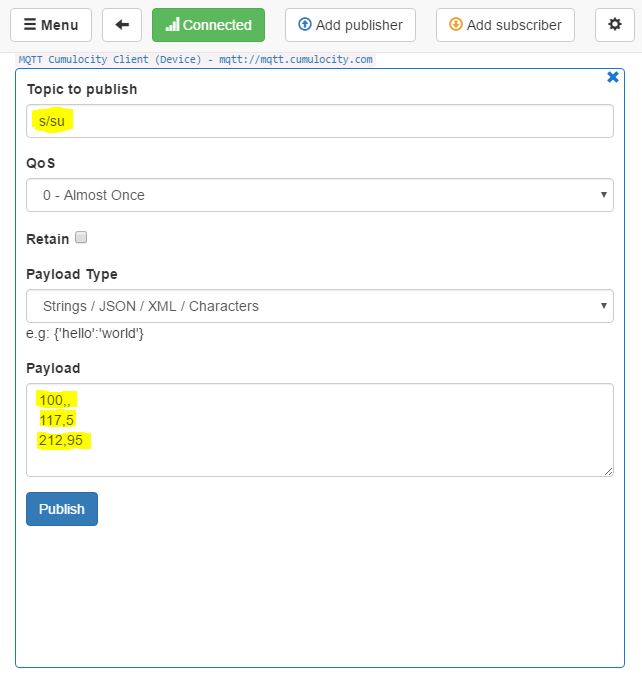
A device can be created using a predefined C8Y MQTT template with the template number ‘100’.
100, deviceName, deviceType
It is possible to include further templates within the payload on new lines. For example, with template 110 the following attributes can be specified: serialNumber, model, revision
List of template IDs
A detailed description of the templates and their parameters can be found at the following URL.
| 100 | Device creation |
|---|---|
| 101 | Child device creation |
| 105 | Get child devices |
| 106 | Get children of device |
| 110 | Configure Hardware |
| 111 | Configure Mobile |
| 112 | Configure Position |
| 113 | Set Configuration |
| 114 | Set supported operations |
| 115 | Set firmware |
| 116 | Set software list |
| 117 | Set required availability |
| 200 | Create custom measurement |
| 210 | Create signal strength measurement |
| 211 | Create temperature measurement |
| 212 | Create battery measurement |
| 301 | Create CRITICAL alarm |
| 302 | Create MAJOR alarm |
| 303 | Create MINOR alarm |
| 304 | Create WARNING alarm |
| 305 | Update severity of existing alarm |
| 306 | Clear existing alarm |
| 400 | Create basic event |
| 401 | Create location update event |
| 402 | Create location update event with device update |
| 500 | Get PENDING operations |
| 501 | Set operation to EXECUTING |
| 502 | Set operation to FAILED |
| 503 | Set operation to SUCCESSFUL |
| 510 | Restart |
| 511 | Command |
| 513 | Configuration |
| 515 | Firmware |
| 516 | Software list |
| 517 | Measurement request operation |
| 518 | Relay |
| 519 | RelayArray |
| 520 | Upload configuration file |
| 521 | Download configuration file |
| 522 | Logfile request |
| 523 | Communication mode |
The following image shows the creation of an MQTT device:
The device is then displayed within ‘Device Management’:
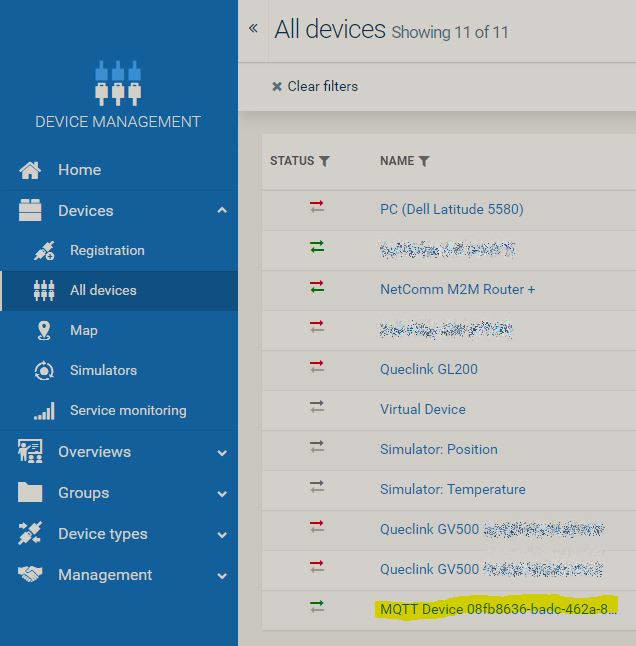
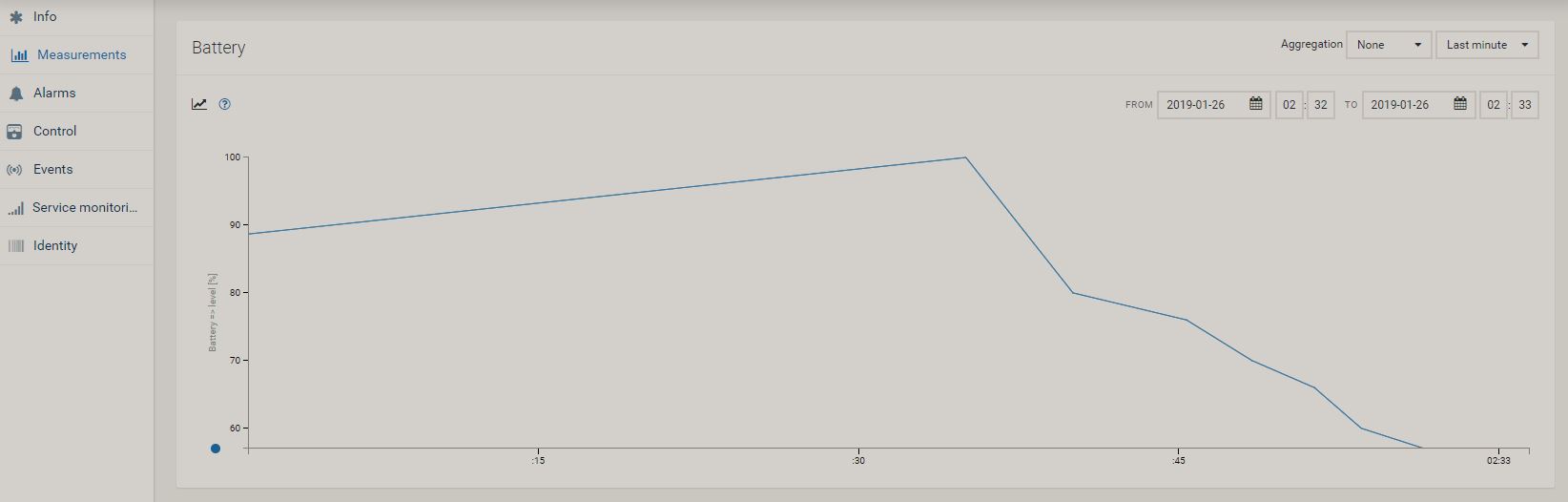
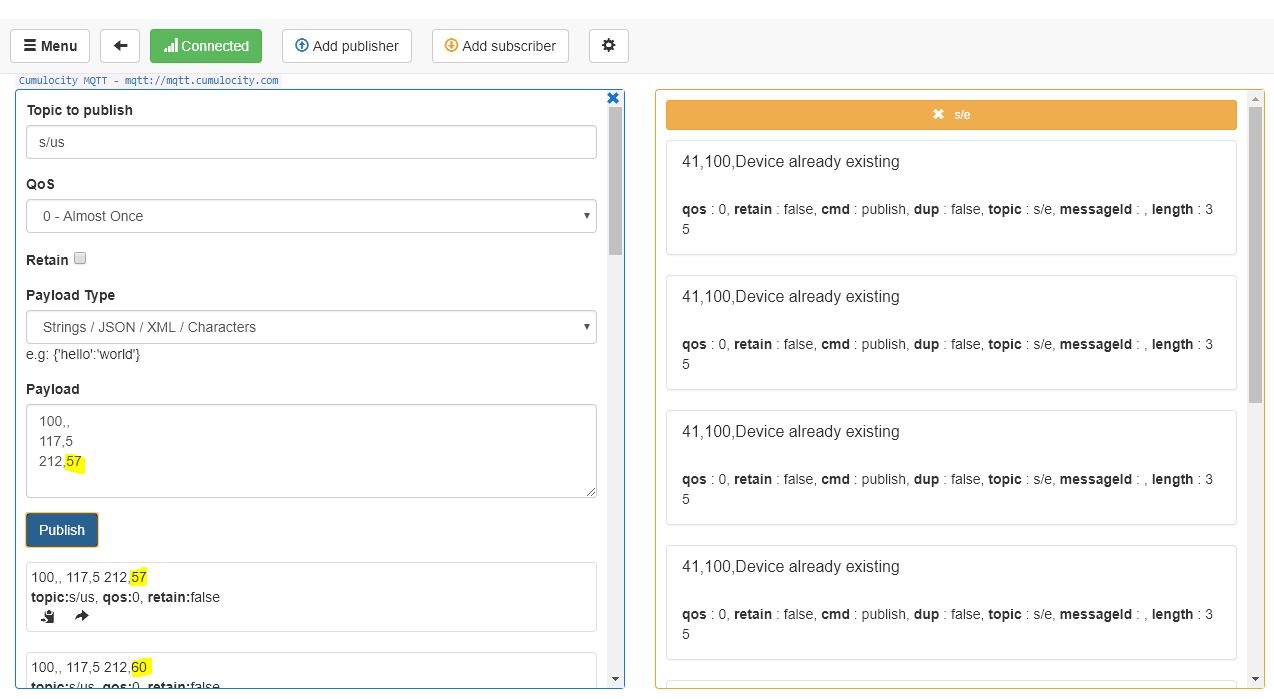
As you can see from the template IDs above, a new device was created with ID 100. Template ID 117 set the ‘response interval’, and ID 212 represents the battery charge status. Here, 97 stands for 97%. By entering, for example, 212,95 & 212,85 & 212,65 & 212,57 we can simulate a battery discharge.
I previously subscribed to topic ’s/e’ to read out the battery status.

Within the platform, the battery discharge looks as follows: